OpenClaw on Hostinger VPS: Complete Setup Guide

Version: 2026.04.23
Date: April 23 2026
Audience: Complete beginners comfortable with copy-paste, no prior VPS experience required
Estimated time: 60–90 minutes
Before You Begin
Architecture
Before touching any server, take two minutes to understand what you are building. Every step below will feel logical rather than arbitrary once you see the full picture.

Key things to understand about this design:
- All access goes through Tailscale — both your terminal (SSH) and the OpenClaw web dashboard. No public ports are exposed.
- The VPS has no open ports visible to the internet. An attacker who finds your IP address sees nothing.
- Tailscale uses WireGuard, a modern, audited, encrypted VPN protocol. Your traffic between devices is always encrypted.
- The Control UI (port 18789) is only reachable inside your Tailscale network. You access it from your Mac or phone the same way — open a browser, go to
http://YOUR_TAILSCALE_IP:18789. No tunnels, no forwarding, no extra steps.
This is simpler and more secure than the traditional SSH-tunnel approach. Tailscale replaces both the SSH key management and the need for manual tunnels.
What this costs
| Item | Cost |
|---|---|
| Hostinger KVM 2 VPS | ~$9/month |
| Daily backups (optional, recommended) | $6/month |
| Tailscale | Free for personal use (up to 100 devices) |
| Anthropic API | Variable — set a $30–50/month limit to start |
| Total baseline | ~$15–20/month + API usage |
What you will have when you finish
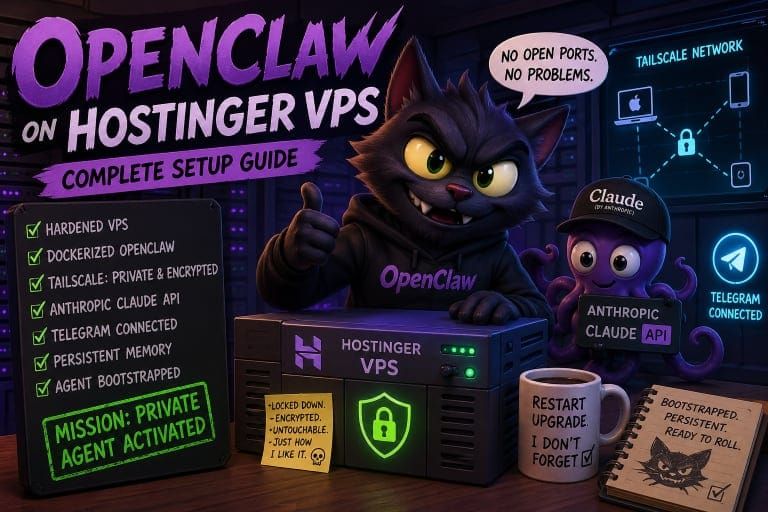
- A hardened Hostinger VPS running OpenClaw in Docker
- A Tailscale network linking your VPS to your Mac, phone, and other devices
- No open ports visible to the internet — all access is private and encrypted
- Claude (Anthropic API) as the agent’s LLM backend
- Telegram connected as a channel
- Fully persistent agent memory that survives restarts and upgrades
- A bootstrapped agent ready to use from any device
Prerequisites checklist
Before you start, create accounts at these services (all are free unless noted):
- [ ] Hostinger account — you will purchase a VPS (paid)
- [ ] Anthropic account — for Claude API access (pay-as-you-go, ~$40 to start)
- [ ] Telegram account — the mobile app works on iPhone and Android
- [ ] Tailscale account — free for personal use
Table of Contents
- Phase 1: Provision Your Hostinger VPS
- Phase 2: Install Tailscale (Before Anything Else)
- Phase 3: Harden the Server
- Phase 4: Set Up Persistent Data Storage
- Phase 5: Create Your Secrets File
- Phase 6: Set Up Your Anthropic API Key
- Phase 7: Configure OpenClaw
- Phase 8: Create Your Telegram Bot
- Phase 9: Configure the docker-compose.yml for Persistence and Image Pinning
- Phase 10: Start the Gateway
- Phase 11: Bootstrap the Agent
- Phase 12: Apply Security Hardening
- Phase 13: Complete Telegram Pairing
- Phase 14: Set Behavioral and Financial Guardrails
- Appendix A: Updating OpenClaw
- Appendix B: Log Management
- Appendix C: Emergency Recovery (Hostinger Browser Console)
- Appendix D: Quick Reference Cheat Sheet
- Appendix E: Common Problems
- Appendix F: Now What?
Phase 1: Provision Your Hostinger VPS
What is a VPS and why use one?
A VPS (Virtual Private Server) is a computer in a data centre that runs 24 hours a day, 7 days a week. You rent it by the month. Unlike running OpenClaw on your laptop, a VPS:
- Is always on — your agent keeps working while you sleep
- Is isolated from your personal files — a misconfiguration cannot touch your home directory
- Has a predictable, stable environment — no software conflicts with your other apps
- Has a static IP address — Tailscale can always find it
Step 1.1 — Choose your plan
Navigate to Hostinger’s VPS plans. The recommended baseline is the KVM 2 plan:
| Spec | KVM 1 (minimum) | KVM 2 (recommended) |
|---|---|---|
| vCPU | 1 | 2 |
| RAM | 4 GB | 8 GB |
| NVMe storage | 50 GB | 100 GB |
| Monthly cost | ~$5 | ~$9 |
Why specs matter for an AI agent: OpenClaw runs continuously, handles Telegram messages, makes API calls, and maintains memory. Under load (especially during the bootstrap phase where it makes many LLM calls quickly), a KVM 1 can become resource-constrained. KVM 2 gives comfortable headroom. Use KVM 1 only for very light personal use where you expect minimal traffic.
Step 1.2 — Select your operating system
Choose Ubuntu 22.04 LTS or Ubuntu 24.04 LTS.
LTS stands for Long Term Support. Ubuntu releases an LTS version every two years and supports it with security patches for five years. Non-LTS releases get only nine months of patches. For a server you plan to run for a year or more, LTS is the right choice.
Step 1.3 — Handle the “Ready to Use AI” toggle
During checkout, Hostinger may present a “Ready to Use AI” toggle. This is a billing and provider choice, not a security setting.
- If you leave it on: Hostinger bundles AI credits via their nexos.ai provider. You pay through Hostinger and have less control over model selection and pricing.
- If you deselect it: You supply your own Anthropic API key. You have full control — choose any Claude model, set your own spend limits, and pay Anthropic directly.
Deselect it. This guide wires up Anthropic Claude directly.
Step 1.4 — Add daily backups
Hostinger includes weekly backups free in the base plan. Daily backups cost $6/month and can be added during checkout or from hPanel afterward.
Daily backups are worth it for this setup. OpenClaw can reconfigure itself — its config files and agent memory files can change over time. If something goes wrong (a misconfiguration, an unexpected agent action, a bad upgrade), a daily backup is a powerful undo button. You can restore to yesterday’s state rather than starting over.
Step 1.5 — Complete checkout and note your server details
After purchase, Hostinger sends you an email with:
- Your VPS IP address
- Your root password
Root is the most powerful account on a Linux server. It has complete, unrestricted control over everything — it can delete the operating system itself. You will use it exactly once, in Phase 2, to set up Tailscale. After that, it will be locked down.
Log into hPanel and navigate to your VPS dashboard. Keep this tab open.
Step 1.6 — Bookmark the emergency browser console
Before doing anything else: in hPanel, find your VPS and locate the Console option (sometimes labelled Emergency Console or VNC). This opens a terminal window directly in your browser, connecting to your server through the data centre’s internal network — completely bypassing all network configuration.
Bookmark this page now. If anything in Phase 2 or Phase 3 breaks your network connectivity, this console is your way back in. You cannot reach it via Tailscale or SSH because those are the very things that may be broken — but the browser console always works as long as the server is powered on.
ℹ️ Note: The browser console is your emergency escape hatch. Bookmark it before you need it, not after.
Phase 2: Install Tailscale (Before Anything Else)
📖 What: Installing Tailscale on your VPS. 💡 Why: Tailscale creates a private, encrypted network between your devices. Once installed, your VPS has no open ports visible to the internet — not for SSH, not for the OpenClaw dashboard. Everything goes through Tailscale’s encrypted WireGuard tunnel. This is simpler than managing SSH keys yourself and more secure than leaving any port publicly exposed. After Phase 2 is complete, you will never need your VPS’s public IP address again.
Step 2.1 — First login (one time only)
This is the only time you will use the root password and the public IP address from Hostinger’s email.
SSH (Secure Shell) is an encrypted terminal session over the internet. The command below opens a terminal on your VPS from your local machine:
# Run on your LOCAL machine
ssh root@YOUR_VPS_IP
Enter the root password from Hostinger’s email when prompted.
Step 2.2 — Install Tailscale on the VPS
Tailscale provides a one-line installer that detects your OS and installs the correct package automatically:
⚠️ Security note: curl | sh This command downloads a shell script from the internet and runs it immediately — a pattern worth understanding before you use it. The risk: if Tailscale’s servers or CDN were compromised, you could execute malicious code as root.
Why we use it anyway: Tailscale’s install script is open source (you can read it at github.com/tailscale/tailscale), maintained by a well-funded security-focused company, and this is their official documented install method for Linux. It is the same method Tailscale’s own documentation recommends.
If you prefer to verify first: download the script, inspect it, then run it:
For most users following this guide, the one-liner is fine. For the cautious, inspect first.
# Run on your VPS
curl -fsSL <https://tailscale.com/install.sh> | sh
ℹ️ Note: This installs the latest stable Tailscale release via your OS package manager (apt on Ubuntu). Unlike the OpenClaw Docker image, the Tailscale version is not pinned here — Tailscale manages its own updates through the system package manager after this initial install.
Step 2.3 — Enable Tailscale SSH and connect to your network
Tailscale SSH is the feature that makes everything simpler. Instead of managing SSH key files yourself, Tailscale handles authentication through your Tailscale account. Any device logged into your Tailscale account can SSH into any other device on the network — no key files to copy, no authorized_keys to manage.
# Run on your VPS
sudo tailscale up --ssh
This command outputs a URL. Open it in your browser and log in to your Tailscale account to authorise the VPS as a device on your network.
Step 2.4 — Note your Tailscale IP
# Run on your VPS
tailscale ip -4
This returns an IP address that looks like 100.x.x.x. This is your VPS’s address inside the Tailscale network. Save this IP— write it down or paste it into a note. From this point on, you use this address to reach your VPS, not the public IP from Hostinger.
Step 2.5 — Install Tailscale on your other devices
Every device that needs to access OpenClaw — your Mac, your iPhone, your iPad — needs Tailscale installed and signed in to the same Tailscale account as your VPS.
- Mac: Download from tailscale.com or the Mac App Store. Sign in with your Tailscale account.
- iPhone/Android: Install the Tailscale app. Sign in with the same account.
Once all devices are connected, they should all appear in your Tailscale admin console at login.tailscale.com. You should see your VPS listed there now. Confirm it shows as Connected.
Step 2.6 — Test Tailscale SSH from your local machine
Open a new terminal window on your local machine (keep the root session open for now). Test that you can reach the VPS through Tailscale:
# Run on your LOCAL machine — new terminal window
ssh root@YOUR_TAILSCALE_IP
This should connect without a password prompt. Tailscale SSH authenticates via your Tailscale account — no keys, no password.
⚠️ Warning: Do not proceed until this works. If Tailscale SSH does not connect, check that both your local machine and your VPS appear as Connected in your Tailscale admin console at login.tailscale.com. If the VPS shows as offline, re-run Step 2.3.
Phase 3: Harden the Server
📖 What: Creating a non-root user and locking down the server’s network exposure. 💡 Why: Root has unlimited power — a single mistyped command can delete the entire operating system. A non-root user with sudo access can do everything you need, but mistakes and compromised processes are contained. We also configure the firewall to allow only Tailscale traffic — since Tailscale handles all of our access, we do not need any public-facing ports at all.Step 3.1 — Create a non-root user
sudo (superuser do) lets a normal user temporarily act as root for specific commands — like “run this one thing as administrator.” You type your password before each elevated command, making accidental root actions much harder.
# Run on your VPS
adduser YOUR_USERNAME
usermod -aG sudo YOUR_USERNAME
adduser will ask you for a password and some optional profile fields. Set a password; skip the profile fields by pressing Enter.
Step 3.2 — Verify Tailscale SSH works for the new user
⚠️ Warning: Do this in a new terminal window before logging out of your root session. This is critical — if the new user cannot connect, fix it before closing root. If you close root first and the new user does not work, you are locked out.
# Run on your LOCAL machine — new terminal window
ssh YOUR_USERNAME@YOUR_TAILSCALE_IP
You should connect without a password prompt. If it does not work: confirm you typed the username correctly, then re-run Step 3.1. If it still fails, use the Hostinger browser console (bookmarked in Phase 1) to investigate.
Step 3.3 — Configure the firewall
⚠️ Critical preflight check — read before running any UFW command: The firewall rules below will deny ALL incoming connections except traffic arriving over the Tailscale interface (tailscale0). This means if you are currently connected to this server over a regular public-IP SSH session (port 22, not via Tailscale), runningsudo ufw enablewill immediately terminate your connection and lock you out.
Before continuing, confirm you are connected via Tailscale by running this on your VPS:
If the first IP address shown starts with100.— you are on Tailscale. Safe to proceed. If it shows your public VPS IP — you are on a regular SSH session. Stop. Reconnect via Tailscale SSH first (ssh YOUR_USERNAME@YOUR_TAILSCALE_IPfrom a new terminal), then return here.
If you do get locked out: use the Hostinger browser console (bookmarked in Phase 1) to access your server and runsudo ufw disableto restore access.
UFW (Uncomplicated Firewall) controls which network connections are allowed in and out of your server. Think of it as a bouncer at the door — it checks every incoming connection against a rulebook and either lets it in or turns it away.
The strategy here is: default deny all incoming traffic, then allow only Tailscale. This means the public internet cannot reach any service on your VPS. Everything — SSH, the OpenClaw Control UI, any future service — goes through the Tailscale interface.
# Run on your VPS
sudo ufw default deny incoming
sudo ufw default allow outgoing
sudo ufw allow in on tailscale0
sudo ufw enable
tailscale0 is the virtual network interface Tailscale creates on your server. Traffic arriving on this interface is already encrypted and authenticated by Tailscale — only devices on your Tailscale network can send it.
Verify:
# Run on your VPS
sudo ufw status verbose
You should see:
- Default: deny (incoming)
- Default: allow (outgoing)
tailscale0ALLOW IN Anywhere
ℹ️ Note: Port 22 (SSH) and port 18789 (OpenClaw Control UI) are not listed separately here — that is correct. They are blocked from the public internet by the default deny rule. Access to both goes through the Tailscale interface, which is already allowed above. There is no need to open them on the public interface.
Step 3.4 — Disable root login
Now that you have a working non-root user and Tailscale SSH, disable direct root SSH login.
First, back up the SSH config:
# Run on your VPS
sudo cp /etc/ssh/sshd_config /etc/ssh/sshd_config.bak
Then open the config:
# Run on your VPS
sudo nano /etc/ssh/sshd_config
Find and set these two lines (add them if they do not exist):
PermitRootLogin no
PasswordAuthentication no
Save (Ctrl+O, Enter, Ctrl+X) then restart the SSH service:
# Run on your VPS
sudo systemctl restart sshd
ℹ️ Note: With Tailscale SSH handling authentication, PasswordAuthentication no is still worth setting as defence-in-depth. Even if someone somehow reached port 22 on the public interface, password guessing would not work.From this point forward, all your connections use YOUR_USERNAME@YOUR_TAILSCALE_IP.
Phase 4: Set Up Persistent Data Storage
📖 What: Creating directories on the VPS that will hold all of OpenClaw’s data. 💡 Why: Docker containers are ephemeral by design — everything written inside a container is erased when the container stops or is upgraded. By creating directories on the VPS and mounting them into the container, the data lives on the VPS disk rather than inside the container. Upgrades, restarts, and full rebuilds leave your agent’s memory, identity, and skills completely intact.
Think of it this way: the container is like a rental car. When you return the car, everything in the glove box is gone. But if you keep your wallet in your own pocket (the VPS directory), it is always with you, regardless of which car you rent.
Step 4.1 — Create the directory structure
# Run on your VPS
sudo mkdir -p /opt/openclaw/data
sudo mkdir -p /opt/openclaw/logs
sudo mkdir -p /opt/openclaw/config
sudo mkdir -p /etc/openclaw
What each directory is for:
/opt/openclaw/data— the agent’s brain. This holds identity files (IDENTITY.md,USER.md,AGENTS.md), installed skills, and conversation history. Losing this directory means starting over from bootstrap./opt/openclaw/logs— an audit trail of everything the agent does: file reads, web requests, shell commands./opt/openclaw/config— theconfig.yamlfile that controls OpenClaw’s behaviour./etc/openclaw— the secrets directory. This is where the.envfile with API keys lives, separate from the config and data.
Step 4.2 — Set permissions the container can use
📖 What: Setting the correct file permissions on the data directories. 💡 Why: Docker containers run their internal process as a specific user defined in the container image — typically a numeric user ID like 1001, not your Linux username. If the directories are owned by the wrong user, the container silently fails to write data and you will lose agent memory on every restart.
First, check which user the OpenClaw container runs as:
# Run on your VPS
docker inspect openclaw/openclaw:2026.04.23 --format '{{.Config.User}}'
This outputs either a username (like openclaw) or a numeric UID (like 1001), or nothing (which means it runs as root, UID 0).
If it outputs a numeric UID (e.g. 1001):
# Run on your VPS
sudo chown -R 1001:1001 /opt/openclaw
sudo chmod -R 755 /opt/openclaw
sudo chown 1001:1001 /etc/openclaw
sudo chmod 700 /etc/openclaw
Replace 1001 with the actual UID from the inspect output.
If it outputs nothing (root / UID 0):
# Run on your VPS
sudo chmod -R 777 /opt/openclaw
sudo chmod 700 /etc/openclaw
If the image is not yet pulled and inspect returns an error, pull it first:
# Run on your VPS
docker pull openclaw/openclaw:2026.04.23
docker inspect openclaw/openclaw:2026.04.23 --format '{{.Config.User}}'
ℹ️ Note: You can verify this worked correctly in Phase 11 — if the agent’s files appear in /opt/openclaw/data/after bootstrap, permissions are correct. If the directory is empty after bootstrap, the container does not have write access. Return here, re-check the UID, and re-apply.Phase 5: Create Your Secrets File
📖 What: Storing API keys in a protected file, not in the main config. 💡 Why: API keys are like passwords. If the Anthropic key leaks, someone can run up charges on your account. If the Telegram token leaks, someone can impersonate your bot. Keeping keys in a dedicated secrets file with restricted permissions means they are never accidentally included in a config backup, pasted into a forum post, or visible in your shell history. The config file can be safely shared or version-controlled; the secrets file never is.
Step 5.1 — Create the secrets file
# Run on your VPS
sudo nano /etc/openclaw/.env
Add these two lines exactly as shown (you will fill in the real values in Phases 6 and 8):
ANTHROPIC_API_KEY=FILL_IN_LATER
TELEGRAM_BOT_TOKEN=FILL_IN_LATER
Save (Ctrl+O, Enter, Ctrl+X).
Step 5.2 — Lock down permissions
# Run on your VPS
sudo chmod 600 /etc/openclaw/.env
sudo chown YOUR_USERNAME:YOUR_USERNAME /etc/openclaw/.env
chmod 600 means only your user can read or write this file. No other users, no processes running as other system accounts, no accidents.
Phase 6: Set Up Your Anthropic API Key
The tier system — why it matters
Anthropic uses a tiered access system based on cumulative spend:
| Tier | Requirement | Requests/minute | Tokens/minute |
|---|---|---|---|
| Tier 1 | $0 spent | 50 RPM | 30,000 ITPM |
| Tier 2 | $40 cumulative spend | 1,000 RPM | 450,000 ITPM |
Tier 1 limits are too low for the OpenClaw setup. The agent makes many LLM calls during the bootstrap phase and will exceed limits, resulting in silent failures. The $40 spend requirement for Tier 2 is not a loss — it becomes API credit that you draw down over time.
Claude model choice
- Claude Sonnet 4.5: best cost-to-capability ratio for everyday agent use. This guide uses it as the default.
- Claude Opus 4.6: maximum quality for complex reasoning tasks. Higher cost per token. Switch to it once you understand your usage patterns.
Step 6.1 — Add credits and reach Tier 2
Go to console.anthropic.com → Billing → add at least $40 in credits.
While you are there, set a monthly spend limit of $30–50. This cap protects you from runaway costs while you learn your usage patterns. You can raise it later.
Step 6.2 — Create a scoped API key
⚠️ Warning: Do NOT use your master organisation API key on a VPS. If the VPS is ever compromised, you would need to revoke your master key — affecting everything connected to your Anthropic account. Create a dedicated key for this VPS. If it is ever compromised, you revoke that one key and your account stays safe.
- Go to console.anthropic.com → API Keys → Create Key
- Name it
openclaw-hostinger-vps - Set it to the minimum required permissions (completions/inference only)
- Set a monthly spend limit equal to or less than the account-level limit you set above — belt and suspenders
- Copy the key immediately — Anthropic shows it only once
Store it in a password manager.
Step 6.3 — Add to the secrets file
# Run on your VPS
sudo nano /etc/openclaw/.env
Replace FILL_IN_LATER on the ANTHROPIC_API_KEY line with your actual key. Leave the Telegram line unchanged for now. Save.
Phase 7: Configure OpenClaw
Step 7.1 — Retrieve your Gateway Token
The Gateway Token is the master credential that authenticates communication between OpenClaw components. Treat it like a password — store it in your password manager.
It is auto-generated during Docker deployment. Find it here:
hPanel → VPS → Docker Manager → Projects → Manage → Environment
Click the eye icon next to the Gateway Token field to reveal the value. Copy it.
ℹ️ Note: If Docker Manager has not yet deployed the OpenClaw container, complete Hostinger’s Docker Manager walkthrough first, then return here.
Step 7.2 — Create config.yaml
YAML is a structured settings file format. It uses indentation to represent hierarchy. Two rules: always use spaces(never tabs), and be consistent with how many spaces you use per indent level. YAML is strict — a tab instead of spaces will break the file silently.
Back up the existing config file first (the || true means it is safe to run even if no backup exists yet):
# Run on your VPS
sudo cp /opt/openclaw/config/config.yaml /opt/openclaw/config/config.yaml.bak 2>/dev/null || true
sudo nano /opt/openclaw/config/config.yaml
Enter the following configuration:
llm:
provider: anthropic
model: claude-sonnet-4-5

channels:
telegram:
botToken:"${TELEGRAM_BOT_TOKEN}"
dmPolicy:"pairing"

security:
allowInsecureAuth:false

gateway:
bindAddress:"YOUR_TAILSCALE_IP:18789"
Replace YOUR_TAILSCALE_IP with your actual Tailscale IP from Phase 2.
What each section does:
llm: tells OpenClaw which AI brain to use. The API key comes from the.envfile — it never appears here.channels.telegram: wires up Telegram.${TELEGRAM_BOT_TOKEN}is a placeholder that reads the value from your.envfile at startup — the token never appears in this file.dmPolicy: "pairing"means only Telegram accounts that complete the pairing process (Phase 13) can DM the bot. Strangers who find your bot username get no response.security.allowInsecureAuth: false: the most important security setting in this file. Explained in full in Phase 12.gateway.bindAddress: locks the Control UI to your Tailscale IP only. Even if UFW were misconfigured, there is nothing listening on port 18789 on the public interface — the gateway only binds to the Tailscale address.
Save (Ctrl+O, Enter, Ctrl+X).
Phase 8: Create Your Telegram Bot
BotFather is Telegram’s official bot for creating and managing other bots — a bot that manages bots. It has been Telegram’s standard bot creation tool since 2015.
Step 8.1 — Create a bot
- Open Telegram and search for
@BotFather - Start a conversation and send
/newbot - Give it a display name (e.g.
My OpenClaw Agent) — this is what shows in chat headers - Give it a username — must end in
bot(e.g.myagent_bot) — must be unique across all of Telegram
BotFather replies with a token in this format: 1234567890:ABCdefGHIjklMNOpqrsTUVwxyz
Copy this token.
Step 8.2 — Add to the secrets file
# Run on your VPS
sudo nano /etc/openclaw/.env
Replace FILL_IN_LATER on the TELEGRAM_BOT_TOKEN line with the token from BotFather. Save.
Your .env file should now look like this (with real values, not placeholders):
ANTHROPIC_API_KEY=sk-ant-...
TELEGRAM_BOT_TOKEN=1234567890:ABCdef...
Phase 9: Configure the docker-compose.yml for Persistence and Image Pinning
📖 What: Editing the Docker Compose file to mount your data directories and pin the image version. 💡 Why: Without volume mounts, all agent data is erased every time the container stops. Without a pinned image version, an automatic update to latest could silently change your gateway’s behaviour or break a configuration that was working. Pinned versions mean you choose when to update and what to update to.Find your docker-compose.yml in hPanel → Docker Manager, or on the VPS at the path shown in Docker Manager.
Back it up before editing:
# Run on your VPS
sudo cp docker-compose.yml docker-compose.yml.bak
sudo nano docker-compose.yml
Ensure the OpenClaw service definition contains the following. Merge carefully with any existing content — do not delete lines from other services if they exist:
services:
openclaw:
image: openclaw/openclaw:2026.04.23
restart: unless-stopped
env_file:
- /etc/openclaw/.env
volumes:
- /opt/openclaw/data:/app/data
- /opt/openclaw/logs:/app/logs
- /opt/openclaw/config/config.yaml:/etc/openclaw/config.yaml
ports:
-"YOUR_TAILSCALE_IP:18789:18789"
logging:
driver:"json-file"
options:
max-size:"10m"
max-file:"3"
Replace YOUR_TAILSCALE_IP with your actual Tailscale IP.
What each part does:
image: openclaw/openclaw:2026.04.23: pinned to a specific release. No surprise updates. You decide when to upgrade.restart: unless-stopped: the container restarts automatically after a server reboot or crash, unless you deliberately stop it withdocker compose down. This is what makes OpenClaw “24/7.”env_file: loads API keys from the secrets file. Keys never appear in this file.volumes: the three mounts that make data persistent. Agent brain → VPS disk. Logs → VPS disk. Config → VPS disk.portsThe Control UI binds only to your Tailscale IP address. Nothing listens on the public interface.logging: limits Docker logs to 30 MB total (3 files of 10 MB each, auto-rotated). Without this, Docker logs grow indefinitely and can fill your disk.
Save (Ctrl+O, Enter, Ctrl+X).
Phase 10: Start the Gateway
Step 10.1 — Start the container
# Run on your VPS
docker compose up -d
dmeans detached mode — the container runs in the background, not tied to your terminal session. You can close your terminal, and OpenClaw keeps running.
Step 10.2 — Verify it started
# Run on your VPS
docker ps
Look for your OpenClaw container with the status Up. If it shows Exited, read the logs:
# Run on your VPS
docker compose logs
Read the log output carefully — the error message will tell you exactly what went wrong. The most common causes:
- YAML syntax error in config.yaml (check for tabs instead of spaces, or inconsistent indentation)
- Wrong or missing API key in
.env(a trailing space or newline can cause this) - Port already in use (another process is listening on 18789)
Fix the issue, then run docker compose up -d again.
Step 10.3 — Confirm the gateway is listening
# Run on your VPS
curl -s http://YOUR_TAILSCALE_IP:18789/health
Any response — even an error page — confirms the gateway is running and listening. No response means it is not listening on that address. Check the bindAddress in config.yaml and verify it matches your Tailscale IP exactly.
Step 10.4 — Verify port binding is correct
📖 What: Confirming the Control UI is bound to the Tailscale IP only. 💡 Why: If the Tailscale IP placeholder was not replaced correctly in docker-compose.yml, Docker may bind port 18789 to all interfaces (0.0.0.0), making the Control UI publicly accessible. This step verifies the binding before you start using the UI.
# Run on your VPS
sudo ss -tlnp | grep 18789
The output should show your Tailscale IP:
LISTEN 0 ... 100.x.x.x:18789 ...
⚠️ Warning: If the output shows0.0.0.0:18789or*:18789instead, the Control UI is publicly exposed. Stop immediately. Open docker-compose.yml, confirmYOUR_TAILSCALE_IPhas been replaced with your actual100.x.x.xTailscale IP, then rundocker compose down && docker compose up -dand re-check.
Step 10.5 — Access the Control UI from your Mac
Open a browser on your Mac (with Tailscale running) and navigate to:
http://YOUR_TAILSCALE_IP:18789
You should see the OpenClaw Control UI. Log in with your Gateway Token from Phase 7.
ℹ️ Note: This works from your phone too. Open the Tailscale app on your phone to ensure it is connected, then open your mobile browser and navigate to the same address. No tunnel, no port forwarding. Tailscale handles it.
Phase 11: Bootstrap the Agent
📖 What: Running OpenClaw’s first-time setup interview. 💡 Why:BOOTSTRAP.mdis a script OpenClaw runs exactly once. It creates three files that define your agent’s identity and behaviour:IDENTITY.md(who the agent is),USER.md(who you are and your preferences), andAGENTS.md(how the agent should operate). After it runs, it deletes itself — it will never run again. The agent uses these files to maintain context about you across all future conversations. The more thoroughly you answer the bootstrap questions, the more useful your agent will be from day one.
Step 11.1 — Send the bootstrap trigger
⚠️ Warning: Do NOT open a conversation with “Hello” or any casual message. The agent may answer your greeting and skip the bootstrap process entirely. Use the exact phrase below.
In the Control UI, open a new conversation and send:
Let's get you set up. Read BOOTSTRAP.md and walk me through it.
Answer all the agent’s questions as thoroughly as you can. This is your agent learning who you are, what you care about, and how you prefer to work.
Step 11.2 — Verify persistence worked
After the bootstrap completes, check that the files landed on the VPS disk (not just inside the container):
# Run on your VPS
ls /opt/openclaw/data/
You should see IDENTITY.md, USER.md, AGENTS.md, and possibly others. If the directory is empty, the volume mount did not work — re-check the volumes section in docker-compose.yml and confirm the paths exactly match Phase 4.
Step 11.3 — Persistence test
Restart the container and confirm the agent still has its memory:
# Run on your VPS
docker compose down && docker compose up -d
Open Telegram and send your bot:
Who are you and what do you know about me?
The agent should respond with the identity and user context from bootstrap. If it says it has no memory of previous conversations, the volume mount is not working correctly — run Step 11.2 again and confirm the files are present on disk.
Phase 12: Apply Security Hardening
OpenClaw is powerful — it can run terminal commands, read and write files, and make network requests. That power requires deliberate configuration. This phase applies six specific settings. Each is explained so you understand what you are enabling and why.
ℹ️ Note: The OpenClaw documentation at docs.openclaw.ai/gateway/security is a complete reference covering every possible security setting. This guide applies the minimum recommended baseline. Once you are comfortable with your setup, read the full page and apply additional hardening based on your use case.Back up the config file before editing:
# Run on your VPS
sudo cp /opt/openclaw/config/config.yaml /opt/openclaw/config/config.yaml.bak
sudo nano /opt/openclaw/config/config.yaml
Add or update the following sections:
security:
allowInsecureAuth:false
audit:
enabled:true

gateway:
bindAddress:"YOUR_TAILSCALE_IP:18789"
rateLimit:
enabled:true

channels:
telegram:
dmPolicy:"pairing"

agent:
requireConfirmationFor:
- file_write
- shell_exec
- external_api_calls
What each setting does:
allowInsecureAuth: false The most important setting in this entire guide. When set to trueAnyone who obtains your gateway token can authenticate over plain, unencrypted HTTP with no device verification. On a VPS, the gateway binds to a network address by default — combined with allowInsecureAuth: truea leaked token gives full admin access from anywhere on the internet. Setting this false requires proper device pairing alongside the token. You set this in Phase 7 — this step confirms it is in place.
audit.enabled: true Every action the agent takes — file reads, web requests, shell commands, API calls — is written to a log at /opt/openclaw/logs/. This is your paper trail. If the agent does something unexpected, you can review exactly what happened and when. The logs land in your persistent /opt/openclaw/logs/ directory and survive container restarts.
gateway.bindAddress: YOUR_TAILSCALE_IP:18789 Locks the Control UI to your Tailscale IP. Even if UFW is misconfigured and port 18789 becomes temporarily accessible on the public interface, there is nothing listening there — the gateway only binds to the Tailscale address. Defence in depth. You set this in Phase 7 — confirming it here.
rateLimit.enabled: true If the agent enters a loop or a runaway task, rate limiting prevents it from hammering the Anthropic API indefinitely. Protects both your API bill and your Tier 2 rate limit headroom.
channels.telegram.dmPolicy: "pairing" Only Telegram accounts that have completed the pairing process (Phase 13) can DM the bot. Strangers who find your bot username get no response. You set this in Phase 7 — confirming it here.
agent.requireConfirmationFor: [file_write, shell_exec, external_api_calls] Before the agent writes files, runs shell commands, or makes external API calls, it must show you what it is about to do and wait for your explicit approval. This is the principle of least autonomy — the agent asks before acting on anything with side effects. You can always say yes immediately; the point is that you are in the loop before consequential actions happen.
Apply and restart:
# Run on your VPS
docker compose down && docker compose up -d
ℹ️ Note: Always usedocker compose down && docker compose up -dwhen applying config changes. A simplerestartdoes not force the container to re-read bind-mounted config files in all configurations.
Phase 13: Complete Telegram Pairing
📖 What: Linking your personal Telegram account to your OpenClaw agent. 💡 Why: The dmPolicy: "pairing" setting means the bot ignores DMs from everyone by default — including you, until pairing is complete. Pairing creates a verified link between your Telegram user ID and the agent, so only you (and anyone else you explicitly pair) can command it. Without pairing, the bot is effectively deaf to all messages.⚠️ Warning: Pairing codes expire after 1 hour. Complete this flow in one sitting.
Step 13.1 — Check whether the openclaw CLI is on the host or inside Docker
# Run on your VPS
which openclaw
If it returns a path (e.g. /usr/local/bin/openclaw): use the commands directly.
If it returns nothing, the CLI lives inside the container. Prefix all openclaw commands with:
docker exec -it $(docker ps -qf name=openclaw) openclaw
The steps below show the host-side form. Substitute the docker exec prefix if needed.
Step 13.2 — Generate a pairing code
# Run on your VPS
openclaw pairing list telegram
This returns a pairing code. Copy it.
Step 13.3 — Approve the pairing
# Run on your VPS
openclaw pairing approve telegram YOUR_PAIRING_CODE
Replace YOUR_PAIRING_CODE with the code from Step 13.2.
# Run on your VPS — removes the pairing code from your shell history
history -d $(history 1 | awk '{print $1}')
ℹ️ Why: The pairing code was passed as a command-line argument, which means it is saved to your shell history file in plaintext. Although pairing codes expire after 1 hour, removing it from history is good security hygiene — consistent with how we handle all credentials in this guide.
Step 13.4 — Test from Telegram
Find your bot on Telegram (search for the username you created in Phase 8). Send:
Hello
Your agent should respond. If it does not respond within 30 seconds:
docker ps— Confirm the container is running- Confirm the bot token in
.envis correct (copy-paste from BotFather, no trailing spaces) - Confirm
dmPolicy: "pairing"is set in config.yaml - Generate a fresh pairing code — the previous one may have expired
Phase 14: Set Behavioral and Financial Guardrails
📖 What: Setting limits on how the agent behaves and how much it can spend. 💡 Why: An AI agent running 24/7 with access to shell commands and external APIs can, if unconstrained, enter loops that run indefinitely, make hundreds of API calls, or take actions faster than you can monitor them. These guardrails are not about distrust — they are about giving the agent sensible defaults that protect you while you learn how it works. You can always loosen them later.
Step 14.1 — Review your Anthropic spend limit
Go to console.anthropic.com → API Keys → confirm the spend limit on openclaw-hostinger-vps is active. After bootstrap, you will have used a small amount of credit — check the Usage tab to see how much. Adjust your spend limit if needed based on what you observe.
Step 14.2 — Set task limits in OpenClaw chat
In the Control UI or via Telegram, send your agent the following instructions. These are behavioral instructions stored in the agent’s memory — not config file settings. They work because the agent reads them, understands them, and remembers them across conversations:
When a task fails three times in a row, stop and tell me. Do not retry indefinitely.
Limit all background tasks to 10 minutes unless I explicitly say otherwise.
Before sending any message on my behalf, draft it and get my approval first.
Always ask before deleting any file.
Step 14.3 — Final end-to-end verification
Send your agent via Telegram:
What time is it on the server right now, and can you confirm your identity and what you know about me?
A correct, personalised response confirms all four layers are working:
- Telegram → Gateway connection is live
- LLM (Claude) is responding
- Bootstrap memory is loaded from the persistent volume
- Agent identity is intact after restart
If you get a generic response with no personal context, the volume mount is not working — re-check Phase 4 and Phase 11.
Appendix A: Updating OpenClaw
📖 What: Installing a newer version of OpenClaw. 💡 Why: OpenClaw releases updates with new features and security fixes. Because you pinned the image version in Phase 9, nothing changes until you decide to update. Your data is safe through upgrades because it lives on the VPS disk, not inside the container.
# Run on your VPS

# 1. Open docker-compose.yml and update the image tag
sudo nano docker-compose.yml
# Change:  image: openclaw/openclaw:2026.04.23
# To:      image: openclaw/openclaw:NEW_VERSION

# 2. Pull the new image
docker compose pull

# 3. Restart with the new image
docker compose down && docker compose up -d

# 4. Verify it started
docker ps

# 5. Confirm your data is intact
ls /opt/openclaw/data/
Your agent’s memory and identity are untouched. The upgrade swaps only the application code.
Appendix B: Log Management
💡 Why: Theloggingblock indocker-compose.yml(Phase 9) caps Docker logs at 30 MB. But OpenClaw also writes its own audit logs to/opt/openclaw/logs/. These can grow over time. Review them periodically and archive or delete old logs if disk space becomes a concern.
Check current disk usage:
# Run on your VPS
df -h /
du -sh /opt/openclaw/logs/
If logs are large, you can safely delete older files — they are audit records, not operational data. The agent does not need them to function.
Appendix C: Emergency Recovery (Hostinger Browser Console)
If you lose Tailscale connectivity, misconfigure UFW, or are otherwise locked out of your VPS, Hostinger provides a browser-based console that connects directly to your server over the data centre’s internal network — bypassing all network configuration.
How to access:
- Log into hPanel
- Navigate to VPS → your server → Console (or Emergency Console)
- A terminal window opens in your browser
From here you can:
- Restart Tailscale:
sudo systemctl restart tailscaled - Check UFW rules:
sudo ufw status - Temporarily disable the firewall to regain SSH access:
sudo ufw disable - Fix configuration errors in any file
- Fully reset your network setup
ℹ️ Note: You bookmarked this in Phase 1. During an incident, you want to go directly there without searching. If you have not bookmarked it yet, do it now.
Appendix D: Quick Reference Cheat Sheet
Fill this in and store it securely (your password manager is the right place):
| Value | Where to find it | Your value |
|---|---|---|
| VPS IP (public) | Hostinger email / hPanel | |
| VPS Tailscale IP | tailscale ip -4 on VPS | |
| SSH username | Phase 3 | |
| Gateway Token | hPanel → Docker Manager → Environment | |
| Anthropic key name | openclaw-hostinger-vps | |
| Telegram bot username | BotFather message | |
| Control UI URL | http://YOUR_TAILSCALE_IP:18789 | |
| Data directory | /opt/openclaw/data/ | |
| Secrets file | /etc/openclaw/.env | |
| Config file | /opt/openclaw/config/config.yaml | |
| Hostinger console | hPanel → VPS → Console |
Appendix E: Common Problems
“Tailscale SSH won’t connect from my local machine.”
Check both devices appear in login.tailscale.com as Connected. Then:
# Run on your LOCAL machine
sudo tailscale status
tailscale ping YOUR_VPS_TAILSCALE_IP
If the VPS shows offline in the Tailscale console, log in via the Hostinger browser console and run sudo systemctl restart tailscaled.
“The gateway container keeps exiting”
# Run on your VPS
docker compose logs
Read the output carefully. Most common causes:
- YAML indentation error in config.yaml — use spaces, never tabs. A single tab breaks YAML silently.
- Missing or incorrect value in
.env— check for trailing spaces or newlines - Volume mount path does not exist — re-run Phase 4
“Agent has no memory after restart.”
The volume mount is not working. Inspect the container’s mounts:
# Run on your VPS
docker inspect $(docker ps -qf name=openclaw) | grep -A 20 "Mounts"
Confirm /app/data is mapped to /opt/openclaw/data. If it is not, re-check the volumes section in docker-compose.yml and run docker compose down && docker compose up -d.
“Telegram bot is not responding.”
Work through this checklist in order:
docker ps— confirm container is running (not Exited)- Confirm the bot token in
.envis correct (copy-paste from BotFather, no spaces) - Confirm
dmPolicy: "pairing"is in config.yaml - Confirm pairing is complete — re-run Phase 13 if unsure
“I hit Anthropic rate limits during bootstrap.”
You are on Tier 1. Add $40 in credits at console.anthropic.com to reach Tier 2. Wait 5 minutes for the tier change to propagate, then retry bootstrap.
“Docker Compose restart didn’t apply my config changes.”
Always use docker compose down && docker compose up -d it when applying config changes. A simple restart does not force the container to re-read bind-mounted config files in all configurations.
“I’m locked out — Tailscale and SSH are both broken.”
Use the Hostinger browser console (Appendix C). Log in, fix the issue, and reconnect.
Appendix F: Now What?
Your OpenClaw agent is running, secured, and persistent. Here are a few things to try first:
1. Ask it something useful
Summarise what you know about me and tell me what kinds of tasks you can help with.
2. Install a skill
OpenClaw has a skills system for connecting to external apps — Google Workspace, Notion, GitHub, and others. In the Control UI or via Telegram:
What skills are available? Show me how to install the Google Calendar skill.
3. Give it a recurring task
Every morning, tell me what's on my calendar for the day.
4. Test the confirmation guardrails
Delete the file /tmp/test.txt
The agent should ask for your confirmation before doing anything. If it acts immediately without asking, re-check the requireConfirmationFor Setting in Phase 12.