Your Quick Start Guide to Setting Up Hermes on Hostinger
Everyone is talking about self-hosted AI agents right now. Here is how to get one running in about two minutes, without buying a second computer, hiring a sysadmin, or marrying yourself to a platform you might not even like next month.

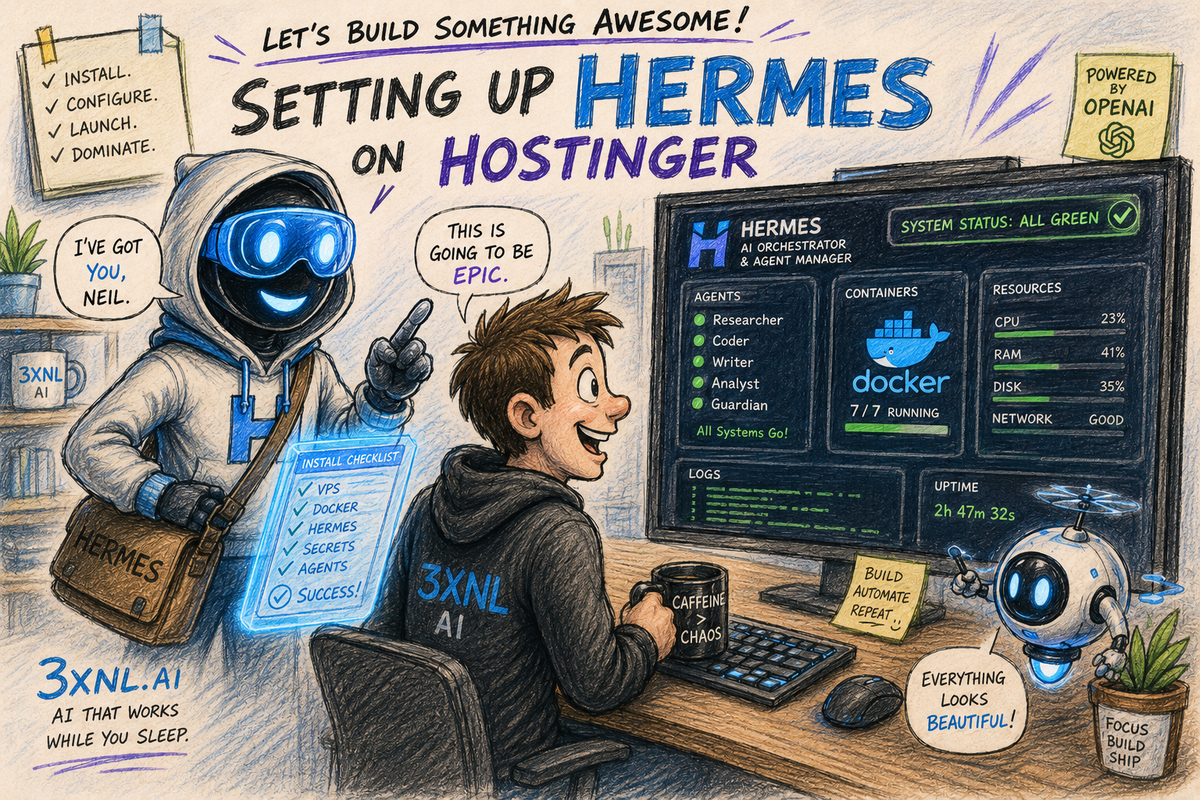
Everyone is talking about self-hosted AI agents right now. Here is how to get one running in about two minutes, without buying a second computer, hiring a sysadmin, or marrying yourself to a platform you might not even like next month.
TL;DR
- What you are doing: Renting a small private server from Hostinger and letting it auto-install Hermes, an open-source AI agent that can run tasks, schedule jobs, and message you on your phone.
- The clever part: You are really buying a VPS (a private server). Hermes is just what you install on it first. Don't like Hermes? Wipe it, install something else, keep the server.
- Time to running: Roughly 2 minutes to install, 10 to 15 minutes to configure.
- Why not just run it on your laptop? Because an autonomous agent that can execute code should live on an isolated, disposable box, not on the machine that holds your photos, passwords, and home network.
First, a Quick Refresher on Hermes
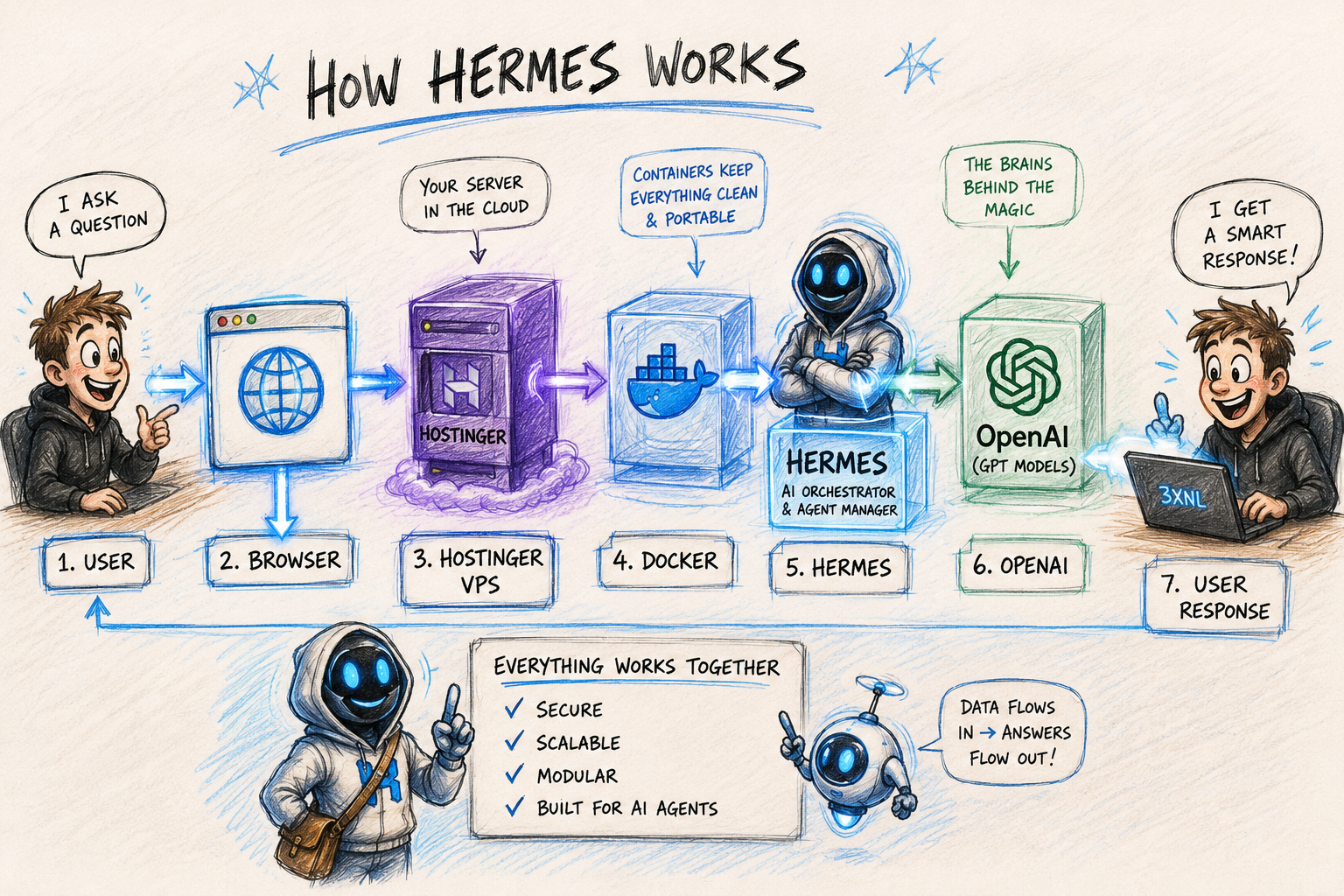
Hermes is an open-source, self-improving AI agent built by Nous Research. Think of it as a layer that sits between you and an AI model (like GPT or Claude) and actually does things: it runs commands, remembers context between sessions, builds reusable "skills," schedules recurring tasks, and connects to chat apps like Telegram so you can talk to it from anywhere. The AI model does the thinking. Hermes is the body that lets it act.
(We have already published a full breakdown of what Hermes is and how it compares to OpenClaw. This guide is purely about deploying it. If you want the deep dive, start there.)
The Part Most Tutorials Skip: You Are Buying a Server, Not a Subscription
Here is the strategic point worth understanding before you spend a cent.
When you follow this method, Hostinger provisions you a VPS (Virtual Private Server) on its KVM 2 plan. That is a real, isolated Linux server with its own CPU, memory, and storage, under your control. Hermes gets installed onto that server as the first thing you run.
Reality Check: A 24-month plan is not a 24-month Hermes commitment. It is a 24-month server commitment. Those are very different things.
If Hermes turns out not to be your favorite agent, you are not stuck. From your Hostinger dashboard, you can change the operating system or redeploy a different app onto the exact same box. The server you paid for stays yours. You can run OpenClaw next month, a personal website the month after, a game server after that. Hermes is the tenant, not the lease.
So the real question you are answering at checkout is not "do I love Hermes forever?" It is "Do I want a small always-on Linux server to experiment with?" For most people reading this, the answer is yes.
What You Will Need Before You Start
- A Hostinger account (you'll create one at checkout).
- An AI provider account to supply the brains. OpenAI is the example used here, but Hermes supports many providers (Anthropic, OpenRouter, Gemini, DeepSeek, local models via LM Studio, and more). Hostinger can also supply built-in credits so you don't have to manage a key yourself.
- A phone with Telegram if you want to chat with your agent on the go (optional but recommended).
- About 15 minutes and zero terminal experience. The one-click installer handles the technical parts.
Step-by-Step Setup
Step 1: Get the Hostinger VPS (KVM 2)
- Go to Hostinger's VPS / AI agent hosting page.
- Choose the KVM 2 plan. It gives you roughly 2 CPU cores, 8 GB of RAM, and 100 GB of fast storage. That is comfortably more than Hermes needs and leaves room to experiment.
- Pick your billing term. The longer the term, the lower the monthly price. The longest term is where the headline discounts live.
- Apply any discount code you have, then complete payment.
Heads-up on pricing: Introductory rates are cheap because they assume a long commitment, and renewal prices jump significantly once the intro term ends. Note the renewal rate now so it isn't a surprise in two years. This is normal for the whole VPS industry, not a Hostinger quirk.
Step 2: Let Hostinger Install Hermes For You
This is the famous "under two minutes" part that earns the reputation.
- In your VPS dashboard, find the application catalog (Docker Manager → Catalog, or the OS/app template option).
- Search for Hermes Agent and select it.
- Choose Ubuntu 24.04 as the base if asked, then start the deployment.
Hostinger now does the heavy lifting: it spins up the server, installs Docker, and deploys Hermes inside its own isolated container. You do nothing but wait. When it finishes, you get a button to open Hermes.
Step 3: Set Your Admin Username and Password (Do Not Skip This)
During deployment, you will be asked to create an admin username and password for the Hermes interface.
Reality Check: Some walkthroughs breeze past this and say "we'll leave the password for later." Don't. This password is the front door to an agent that can run code and spend your API credits. Set a strong, unique one now, and store it in your password manager.
Step 4: Add Your AI Provider
Hermes needs an AI model to think with. Two paths:
Path A: Use your own API key (more control)
- Go to your provider's dashboard (for OpenAI, that's the API keys page at platform.openai.com).
- Create a new key and name it something obvious like
hermes-hostinger. - Copy the key and paste it into Hermes when prompted.
Path B: Use Hostinger's built-in credits (simpler)
- You can let Hostinger supply credits so you never touch a raw API key. Easier to start, and you can switch to your own key later.
Security note (covered in full below): Treat that API key like a credit card number. We'll lock it down properly in the security section.
Step 5: Finish Setup and Test It
- Open Hermes and complete the short setup wizard (provider config, workspace selection). You can leave most options at their defaults.
- Pick your model from the dropdown.
- Say "hello" in the chat. If it says hello back, you have a working agent. That's the whole test.
Step 6: Explore Skills (and Add Your Own)
Skills are what make Hermes genuinely useful out of the box.
- Click the Skills tab to see what comes pre-installed. There are many: coding helpers, diagram tools, research skills, video and animation generators, and more.
- Toggle any skill on or off with a single click. Off by default keeps things lean.
- Click a skill to read it. Each one is just a Markdown file describing what it does.
To add a new skill:
- Find a skill you like on GitHub (or write your own).
- Open the
SKILL.mdfile in the repo and copy its raw contents. - In Hermes, go to the Skills tab, click the + button, give it a name and a category, and paste the contents in.
- Save with the checkmark. Done.
To use a skill in chat, type / to see the list, pick your skill, add your input, and hit enter.
Step 7: Understand Self-Healing (One of the Best Features)
If a skill hits an error Hermes hasn't seen before, it can diagnose the problem and patch itself, for example, by fetching a missing file from the source repo and retrying. You don't have to debug anything. This is a major reason Hermes is friendlier to non-technical users than earlier agents.
Step 8: Set Up Tasks (Scheduled Automations)
Tasks are recurring jobs your agent runs on its own.
- Open the Tasks section and create a new task.
- Give it a name (for example, "Daily Brief").
- Set a schedule (for example, every 24 hours).
- Write the prompt describing what you want done (for example, "Summarize my calendar for the day and list each meeting").
- Save.
Your agent now does that job automatically, on schedule, whether you're watching or not.
Step 9: Give It Memory (the "Soul" Document)
Hermes builds a memory about you over time, and you can also tell it things directly.
- Open the Memory section to see and edit what it knows.
- This is also where the agent's identity / "soul" document lives (similar to the
identity.mdandsoul.mdfiles from OpenClaw (if you've used it). - Edit it to set your name, preferences, tone, or specific facts it should always remember. Save, and it sticks.
Step 10: Use Profiles to Keep Agents Focused
Profiles let you run several specialized agents instead of one bloated do-everything bot. You might keep a "marketing" profile with one set of skills and a "development" profile with another. Cleaner, faster, and easier to reason about.
Step 11: Watch Your Usage (Insights)
The Insights tab shows token usage, message counts, and session counts over time. Check it regularly. This is your early-warning system for runaway costs, which matters a lot when you're paying per token.
Step 12: Settings, Providers, and Model Routing
Hermes is generous with options. In Settings, you'll find a long list of inference providers (OpenAI, Anthropic, Gemini, DeepSeek, local options, and more) and a feature called model routing.
Model routing lets you assign different models to different jobs: a strong model for reasoning, a cheaper one for simple lookups, something with vision when you need images understood. If you want the simplest possible life, leave routing on auto and let Hermes choose.
Step 13: Add Plugins
Plugins are bigger than skills: think entire workflows rather than single tools. Web scraping, browser control, chat integrations, and more are available out of the box, with the option to install or build your own. Add what you need, ignore the rest.
Step 14: Connect a Messaging Gateway (Telegram Example)
This is what lets you talk to your agent from your phone.
- In Hostinger, open the command line for your server and type the gateway setup command Hermes provides.
- Choose your platform from the list (Telegram, Slack, WhatsApp, Signal, email, and others).
- For Telegram: open Telegram, search for BotFather, send
/newbot, and follow the prompts to name your bot. Its username must end in "bot." - BotFather gives you a bot token. Paste it back into the setup.
- When asked for allowed user IDs, add only yourself. (Get your ID by messaging a user-info bot in Telegram and copying the value.) This is the step that stops strangers from commanding your agent.
- Finish and restart the gateway.
Now message your bot. If it replies, you can take your agent anywhere.
Step 15: A Quick Win to Show It Off
Want a satisfying first result? Use a built-in animation skill and ask it to "make a short video explaining how exponentials work." A couple of minutes later, you get a finished animated clip. It's a fun way to confirm the whole pipeline (model, skill, execution) is working end to end.
Security: Why a VPS Beats Your Laptop for This
This is the part that actually matters, so read it even if you skimmed the rest.
An AI agent that can run code is a powerful tool and, handled carelessly, a powerful liability. Where it lives changes how much damage a mistake (or a bad prompt, or a sketchy skill) can do.
Why running Hermes on a Hostinger VPS is safer than running it locally
- Blast radius is contained. On your own PC, an agent with terminal access can, in principle, reach your files, your saved logins, your browser sessions, and your home network. On a VPS, it lives on an isolated server that knows nothing about your laptop or your home lab. If something goes wrong, the worst case is a wrecked server you can rebuild in two minutes, not a compromised personal machine.
- It's disposable. A VPS is cattle, not a pet. If an agent does something you don't like, you delete the container or reinstall the OS and start clean. You cannot "reinstall" your personal laptop that easily.
- It runs 24/7 without exposing your own hardware. Your agent can run while your laptop is closed, so you never have to leave a personal machine online and reachable to make it happen.
- Provider-managed protection. Hostinger's VPS layer includes built-in firewalling, DDoS protection, and platform-level monitoring, which is more than most home setups offer by default.
What a VPS does not do for free
Reality Check: "Isolated" does not mean "invincible." A VPS is a real internet-facing server. The moment you add a messaging gateway, you've opened a door to the outside world. Isolation protects your other stuff. It does not absolve you from securing the server itself.
Your Hermes security checklist
- Set a strong admin password on the Hermes interface (the one some tutorials tell you to skip). Store it in a password manager.
- Lock the gateway to your user ID only. On Telegram, that's the allowed-user-IDs step. Skip it, and anyone who finds your bot can drive your agent.
- Treat your API key like a credit card.
- Use a dedicated key for Hermes (the
hermes-hostingerkey), never one you reuse elsewhere. - Set a spending limit/budget cap in your provider dashboard to prevent a runaway loop from draining your account.
- Rotate the key periodically, and immediately if you suspect it has leaked.
- Use a dedicated key for Hermes (the
- Apply least privilege to skills and plugins. Every skill can run code, and every plugin can reach a service. Enable only what you use. Read a skill before you install it, just as you'd read a permissions prompt.
- Use SSH keys, not passwords, for the server itself, and keep the OS up to date. Hostinger manages much of this, but the agent and any gateways are network-facing, so basic server hygiene still applies.
- Be deliberate about what you connect. A gateway into your email or calendar is convenient and also a real expansion of risk. Connect with intent, not on autopilot.
- Watch the Insights tab. Unexpected token spikes are often the first visible sign that something (a loop, a misfire, or misuse) is wrong.
The honest trade-off
Running locally means the agent could touch everything you own, but is never exposed to the internet. Running on a VPS means the agent touches nothing you own, but is reachable from the internet (once you add a gateway). For an autonomous, always-on, message-from-your-phone agent, the VPS trade is the right one: a contained, rebuildable box beats risking your primary machine and home network. Just secure the box.
When You're Ready to Move On: Reusing the Server
This is the promise from the top of the guide, delivered.
If you decide Hermes isn't for you, you are not throwing money away. From your Hostinger dashboard, you can change the operating system or redeploy a different application onto the same VPS you already paid for. Wipe Hermes, install OpenClaw, host a website, run something entirely unrelated. The hardware is yours for the length of your term, regardless of what runs on it.
That is the whole reason this method is worth recommending: low commitment to Hermes, full ownership of a flexible server.
Wrapping Up
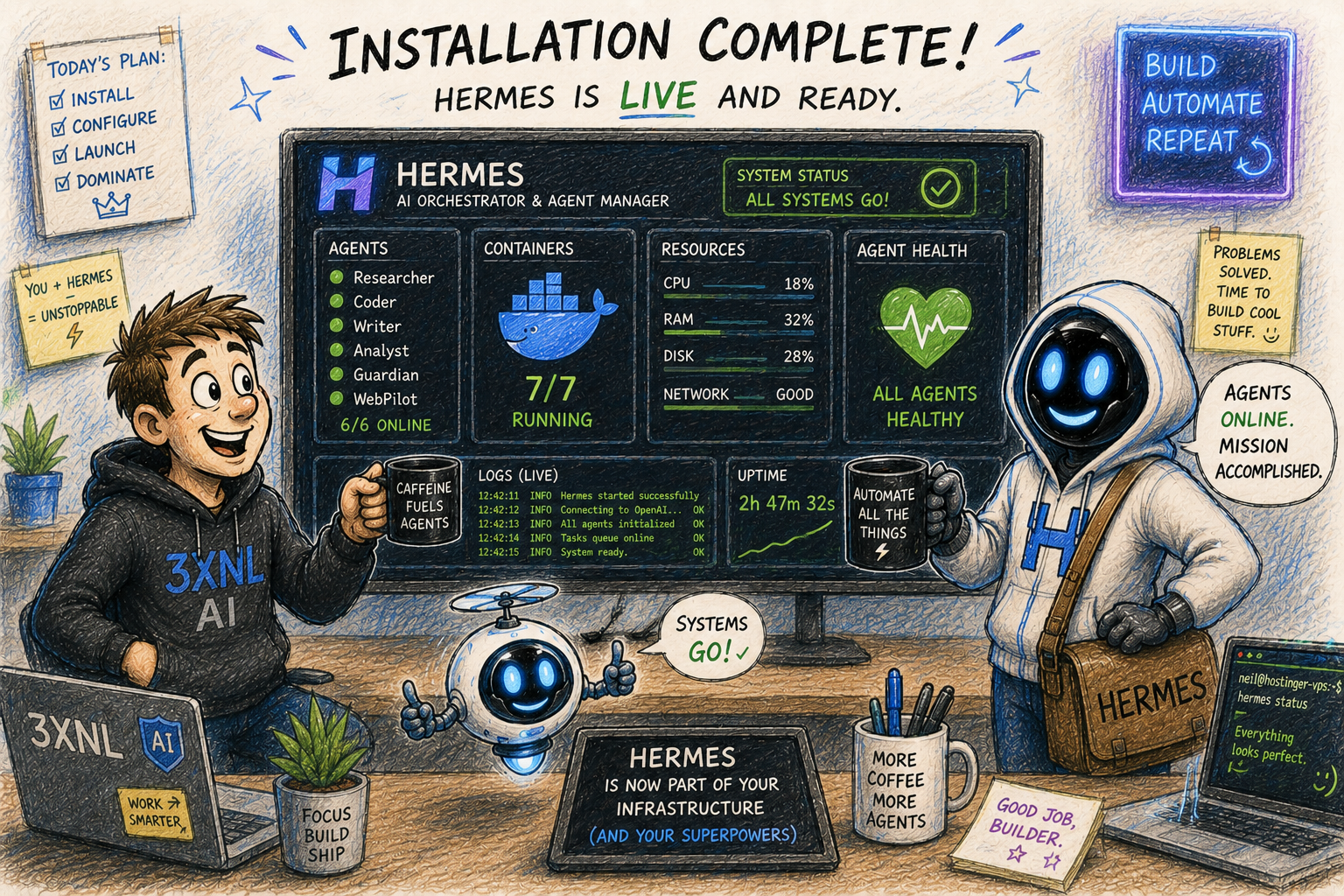
In under two minutes of installation, you get a self-hosted, self-improving AI agent that runs scheduled tasks, builds its own skills, and reaches you on your phone, all on an isolated server that can't touch your personal machine. Configure it thoughtfully, lock down the API key and the gateway, and you've got a genuinely useful assistant running on infrastructure you fully control.
And if it doesn't click? You still own the server. Try the next thing.
Want the conceptual background on what Hermes actually is and how it stacks up against other agents? See our dedicated posts.